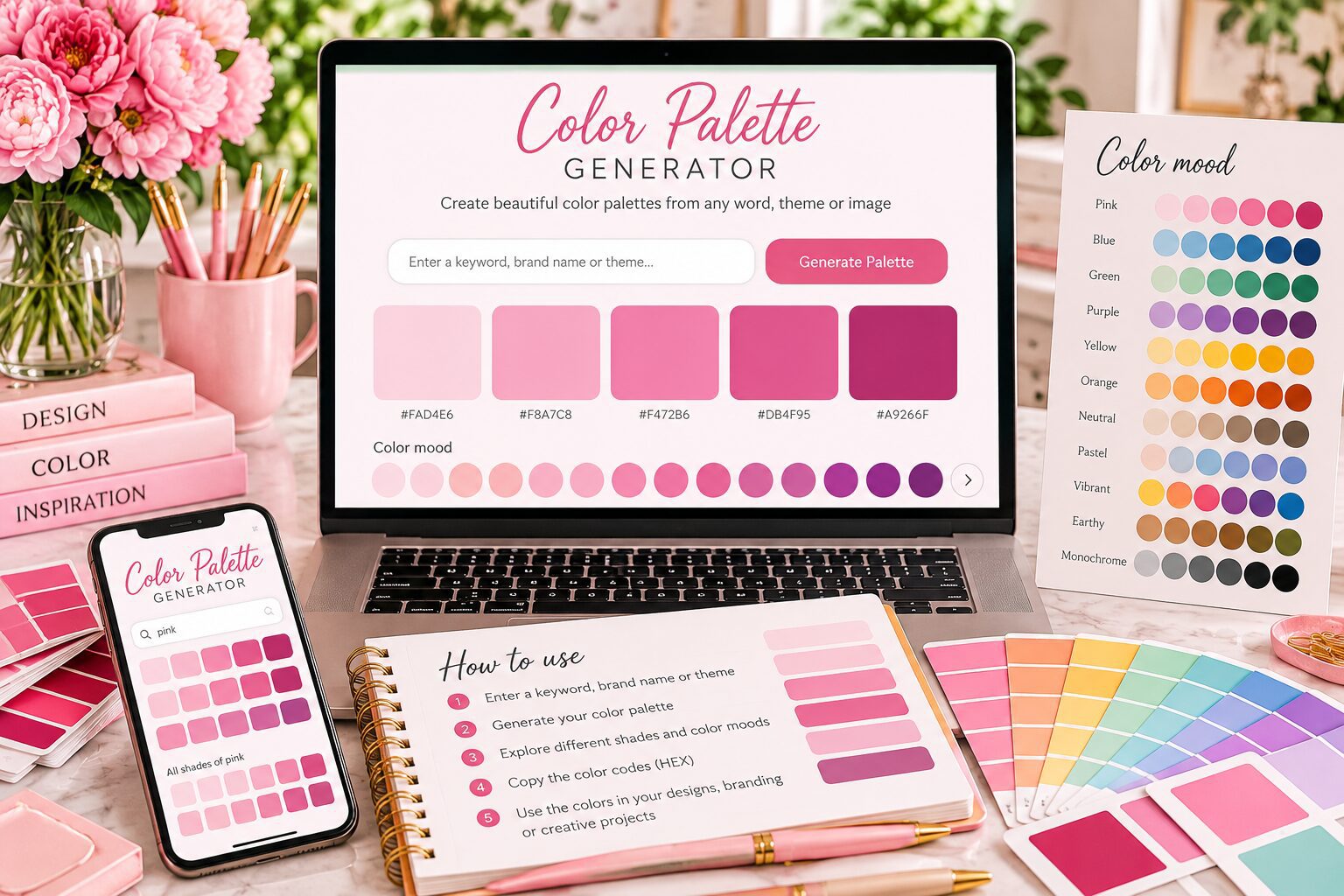
Create colors for your next design
Turn a theme into a palette, discover colors in your photos or blend your own shades. Click any hex code to copy it for your designs.
Enter a color such as green to explore 12 shades from light to dark. Add a theme such as green wedding for a matching combination. Supports English and Dutch color words; unrecognized names use a spelling-based palette.
Your photo stays in your browser. Colors are extracted from its pixels.
Blends screen colors in RGB. Physical paints can mix differently.
Lock a favorite color to keep it when generating another palette. Use the color picker to edit any swatch.
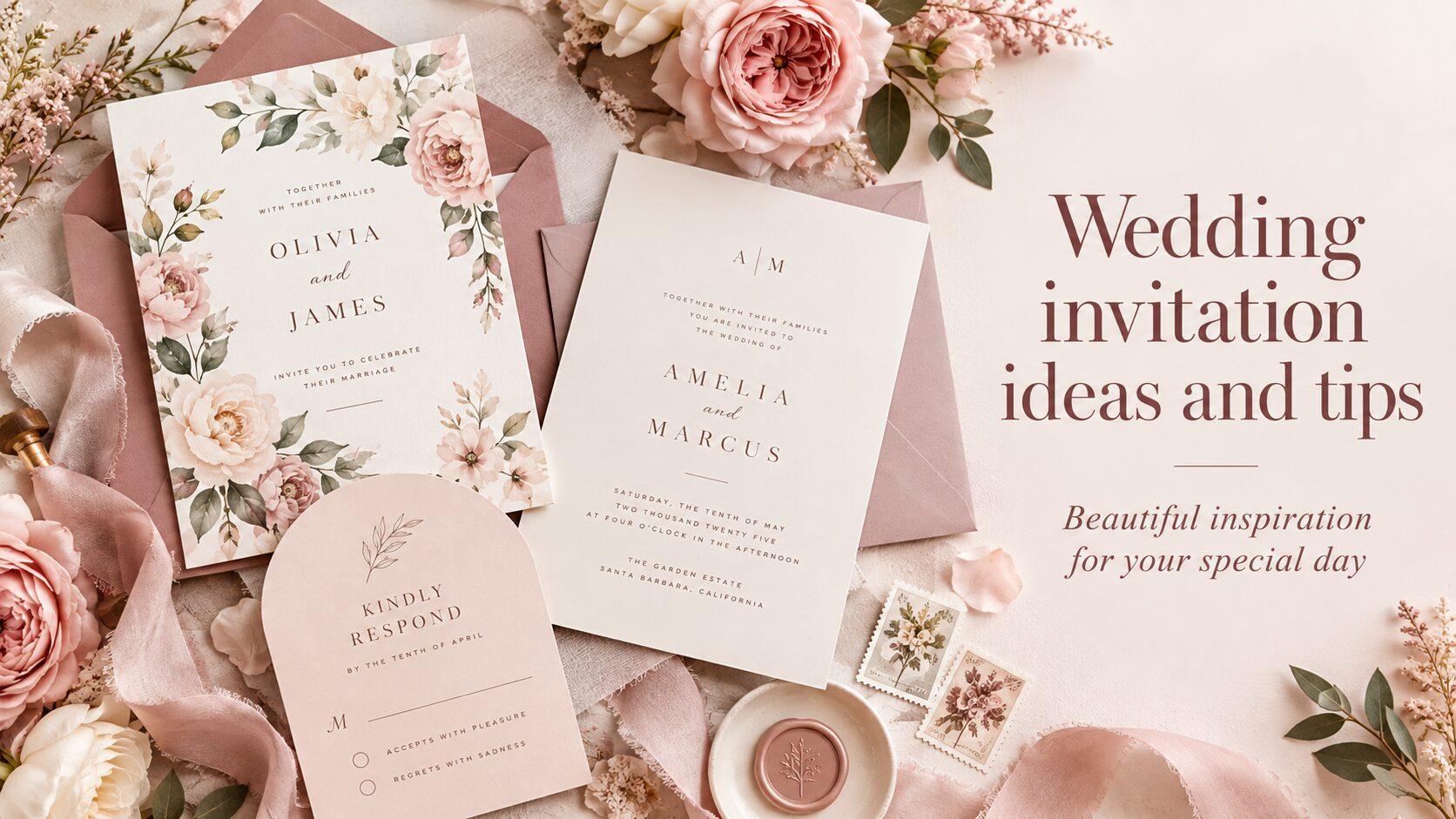
How to describe the palette you want
Your choice of words helps you explore colors for the design you have in mind. Start with a color, a season or an occasion, then add a mood when you want a softer or brighter result. You can enter English or Dutch color words, and the generator will match supported words to a color family or a themed palette. A short description such as “pink wedding” or “warm autumn home” gives you a useful starting point for comparing shades and combinations.
This tool uses recognized words and prepared color relationships. It does not interpret every sentence or identify the visual identity of any brand you enter. When a name is not recognized, you will see a message explaining that its palette comes from the spelling of the name. You can then change the wording, choose a suggested theme or adjust the colors yourself. This makes it easier to understand where your results come from as you experiment.
Start with a color you love
Enter “green” or “groen” when you want to see a range of green shades. A color name on its own creates twelve variations arranged from light to dark. You can compare a pale shade for a background with a deeper shade for lettering, borders or decorative details. The same approach works with supported names such as pink, blue, purple, red, orange, yellow and brown, including their Dutch equivalents.
Add an occasion when you want a combination instead of a single color family. “Green wedding” produces a wedding palette with green as its starting color, while “pink birthday” brings pink into a birthday combination. You can also enter a six-digit hex code such as #ED83B5. A code on its own creates shades around that color; a code together with a supported theme creates a combination around it. Locked swatches stay in place until you unlock them.
Choose a season or occasion
Season words offer a convenient way to explore a different direction. Spring starts with gentle floral and fresh colors, summer introduces brighter combinations, autumn uses warm earthy shades and winter offers cooler colors with deeper accents. The example buttons let you try these directions immediately. You can enter the words yourself when you want to include a preferred color in your description.
For a particular project, try wedding, birthday, home, cards or Christmas. These words select prepared palettes you can adapt to your own taste. For example, “neutral home” gives you a starting point for an interior mood board, while “pastel cards” creates a softer direction for stationery. When your description includes several supported themes, the generator selects one matching theme rather than blending every idea. A focused description therefore makes the result easier to follow.
Give your palette a mood
The Color mood menu includes fifty choices, each applying its own adjustment to the palette. Soft & pastel lightens colors, Bold & bright increases their intensity, Muted reduces saturation and Deep & rich creates darker shades. Other choices include Romantic, Coastal, Earthy, Vintage, Frosted and Jewel tones. Explore the options while watching your swatches change, and return to Balanced when you want to see the original generated colors.
A mood changes the appearance of your current palette; it does not replace your theme with a new subject. When you generate shades from a single color, the mood keeps that color family rather than shifting it toward another hue. When you explore a mixed palette, some moods also shift hues to create a warmer, cooler or more stylized result. You can still edit any individual color if one part of the palette needs a different direction.
How to use the color tools
Choose one of the four tool buttons above the palette to begin. Palette from a name lets you work with a keyword or theme. Palette from an image finds dominant colors in a photo. Random colors helps you discover a shade or combination, and Color mixer lets you blend two screen colors with a ratio you control. The swatches below show your current results, so you can copy codes and adjust colors while moving between tools.
Create a palette from a name or theme
Type your keyword into the input field and select Generate palette, or press Enter. You can also select an example button to generate its palette directly. Read the message below the controls to see whether your words matched a supported color or theme. If you are exploring a themed combination, generating again can create small variations. A single color name gives you a consistent range of shades for comparing lighter and darker versions.
Use the color picker beneath a swatch to change that color yourself. Select Lock color when you want to preserve a particular shade while generating another palette. Its button changes to Unlock color so you can release it later. If you want a completely fresh result, unlock your current colors first. A locked color can otherwise remain visible even when you enter a different color name or switch to another theme.
Extract colors from your photo
Open Palette from an image and choose a PNG, JPEG or WebP photo smaller than twenty megabytes. The tool displays a preview and extracts up to five dominant colors from the visible pixels. A photograph with several distinct colors can produce a varied palette, while a nearly uniform image may produce fewer colors. Transparent areas are excluded from the analysis so they do not become artificial background swatches.
Your photo is processed in your browser rather than uploaded by this tool. Use a picture of flowers, fabric, a room or another visual reference when you want your design to reflect its colors. The extracted palette is a summary of prominent color groups, rather than an exact list of every pixel. Select Balanced for the extracted colors without a mood adjustment, and unlock previous swatches if you want the entire result to come from the photo.
Discover random colors and mix your own
Generate random color gives you one new color to explore. Generate random palette builds a combination around a random starting shade. These options are useful when you have no fixed theme and want to find a direction through comparison. If you discover a color you want to keep, lock its swatch before generating another result. Your selected mood also applies to new random results.
In Color mixer, choose your first and second colors, then move the slider. At one end you see the first color, and at the other end you see the second. The center gives an equal RGB blend. The mixed swatch and its hex code update as you change the ratio. Select Create a palette from this color to build a combination around your result. This mixer blends digital RGB values; paint and ink can behave differently when physically mixed.
Copy hex codes and save your palette
Click the hex code beneath any swatch to copy that individual color, or select Copy hex codes to copy the current palette together. A hex code begins with # and contains six characters, such as #ED83B5. Paste it into a design tool that accepts hex colors to set your background, text or decorative elements. If your browser prevents clipboard access, the tool displays the codes so you can select and copy them manually.
Download palette PNG creates an image containing your current colors and their codes. You can keep it beside your design, add it to a mood board or share it as a reference. The gradient below the swatches offers another view of how your colors sit together. Your palette is not automatically saved between visits, so download it or copy the codes when you want to use the same combination later.
Use your colors in a finished design
For invitations and birthday cards, try a light background with a darker text color and a smaller accent area. Check readability in the actual layout, especially with small lettering. For home inspiration, compare the palette with your flooring, furniture and natural light before selecting a physical finish. A screen palette helps you organize your ideas, but it cannot guarantee how a particular paint, fabric or printed product will look.
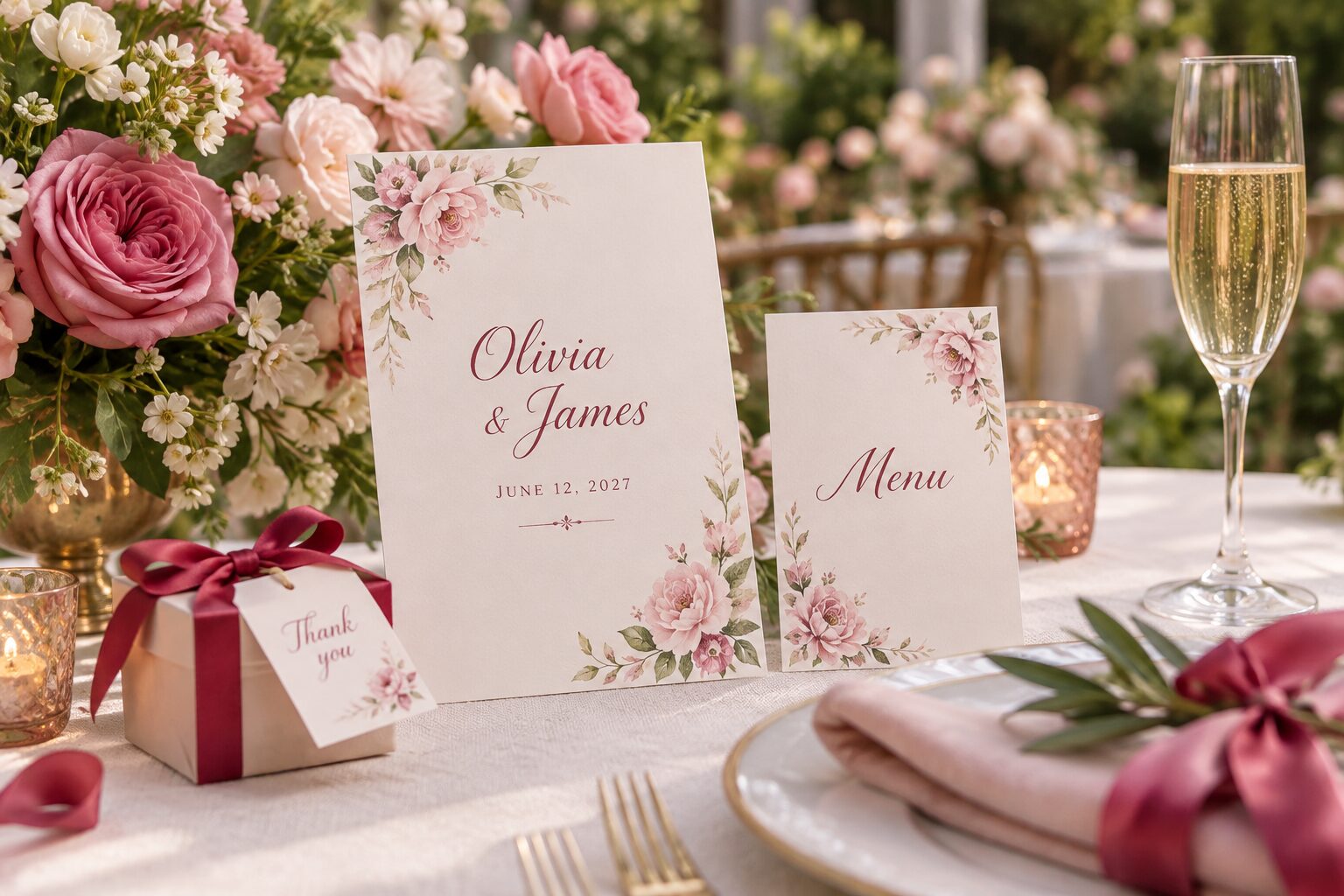
For a wedding, you can use the same color references across invitations, signs and stationery while checking each supplier’s requirements. Printed colors may differ from your screen because of the paper, ink and production process. If a close match matters, request a sample or proof before ordering. Keep the hex codes as your digital reference and compare the physical results under the lighting where you plan to use them.
Use your palette with the free font generator, or find more design inspiration on Pink Dramatic.